
Features
Everything ExpiryNotifier does
One screen at a time, with the exact rules the app applies.
How do you add an item?
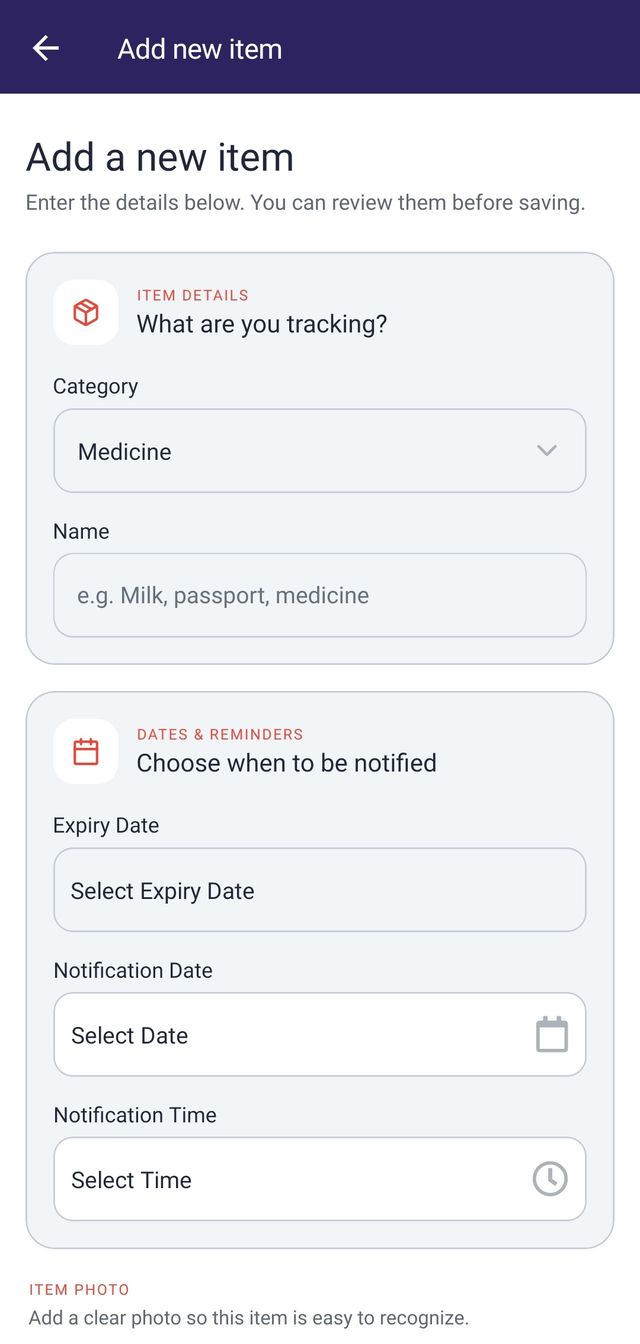
You open the add item form from the button on the item list, fill in five things, and save. The app uploads the photo, stores the item, and schedules the reminder in one go.
If the reminder cannot be scheduled, the app still saves the item and tells you so rather than pretending everything worked. You will see either a confirmation that the item was saved and the reminder scheduled, or a warning that the item was saved but the reminder needs attention in your device settings.
What information does an item need?
Five fields, all required: a category, a name, an expiry date, a reminder date and time, and a photo.
- Category
- Picked from the categories you selected. Only selected ones appear here.
- Name
- Whatever you will recognise later, such as the brand or the shelf it lives on.
- Expiry date
- Cannot be in the past. There is no maximum, so far future dates are fine.
- Reminder date and time
- Cannot be in the past, and cannot fall after the expiry date. Changing the expiry date clears a reminder that no longer makes sense.
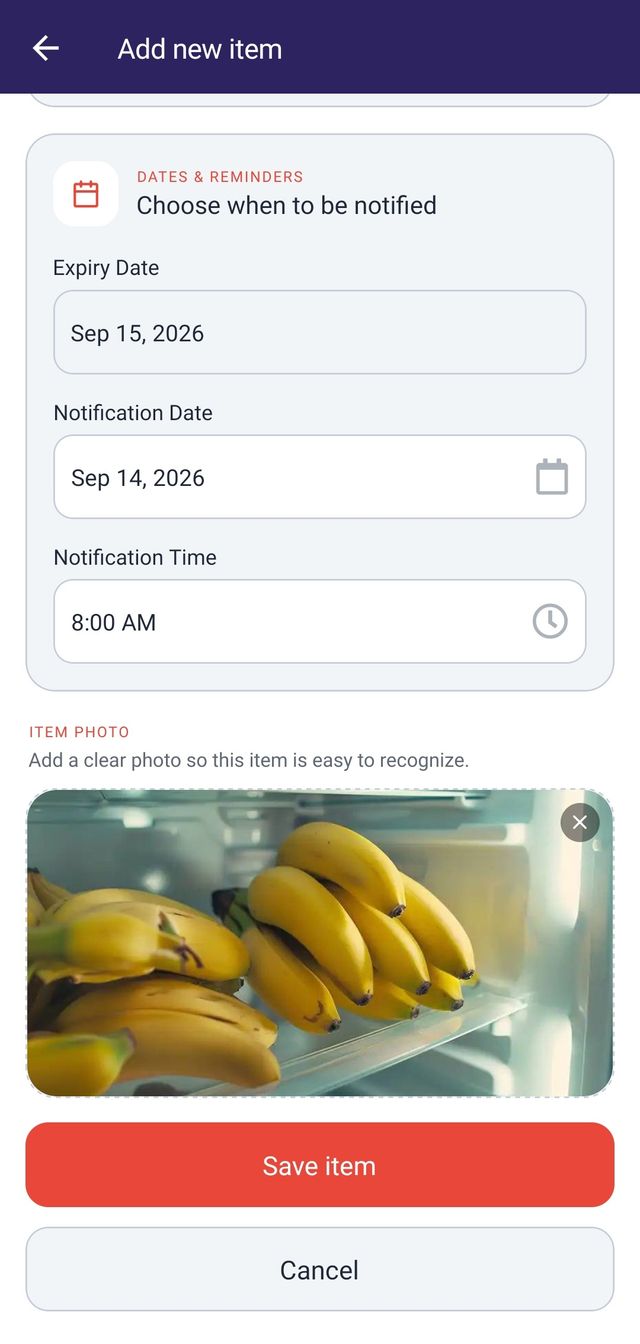
- Photo
- One image from your camera or gallery.
Dates are stored in a fixed format and shown in your device's own. A device set to United States English shows Aug 31, 2026, while one set to British English shows 31 Aug 2026, from the same stored value. Validation messages appear next to the field that caused them, and the form scrolls to the first problem rather than leaving you to hunt for it.
Can you edit an item after saving it?
Not currently. Opening a saved item shows a detail view that is read only, with its photo, category, name, days remaining or days since expiry, reminder date and time, and expiry date. There is no edit or delete action for a saved item yet.
Your profile is editable. Registered accounts can change their display name and their sign in email, and guest accounts can change their display name.
Where do the photos come from?
Your camera or your gallery. The app asks which one you want each time you attach a photo.
Before uploading, the app compresses the image on your device, stepping the quality and width down until it is small enough. That keeps your account small and uploads quick without you thinking about it. The preview is kept to a fixed height so it can never push the save and cancel buttons off screen.
How many categories are there, and can you add your own?
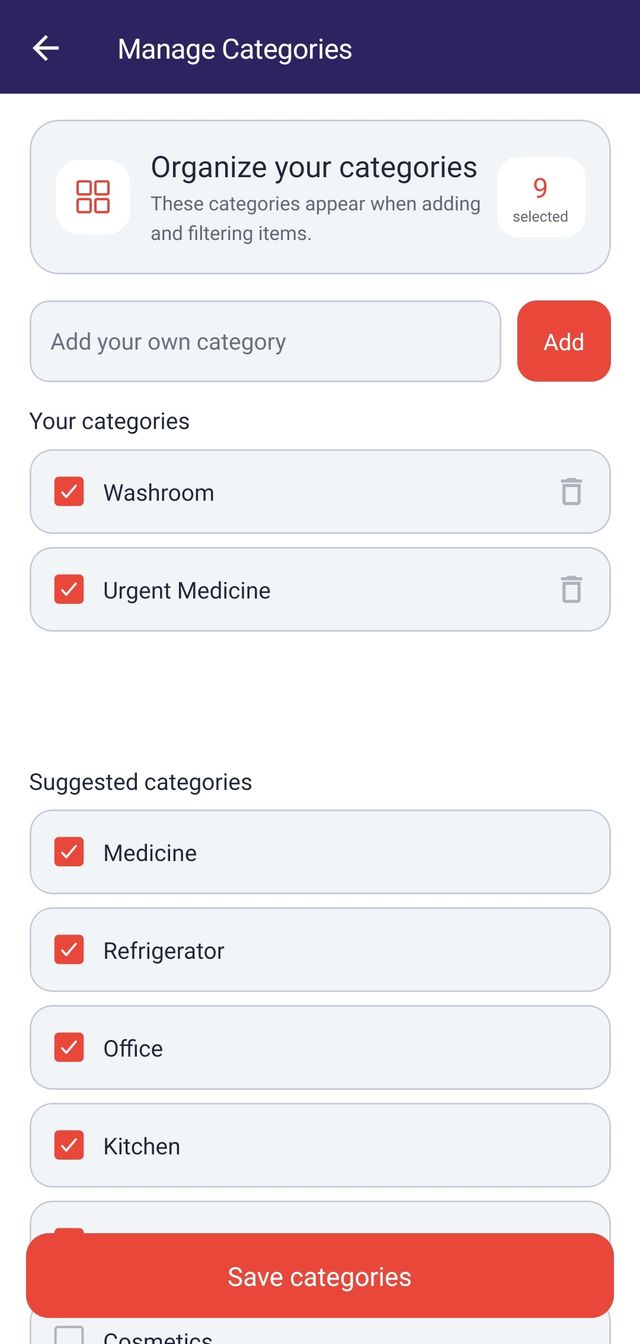
There are 82 preset categories, and you can add your own up to a limit of 50 custom ones.
The presets cover food and drink, medicine and supplements, personal care, cleaning and laundry, electronics and accessories, documents and warranties, clothing, tools, and pet and baby supplies. You choose which ones you actually use during setup, and you can change that selection at any time from Settings.
Custom category names have to be unique, compared without regard to capitalisation, so you cannot end up with two entries for the same thing. When you reach 50, the app stops offering to add more.
How do you narrow down the list?
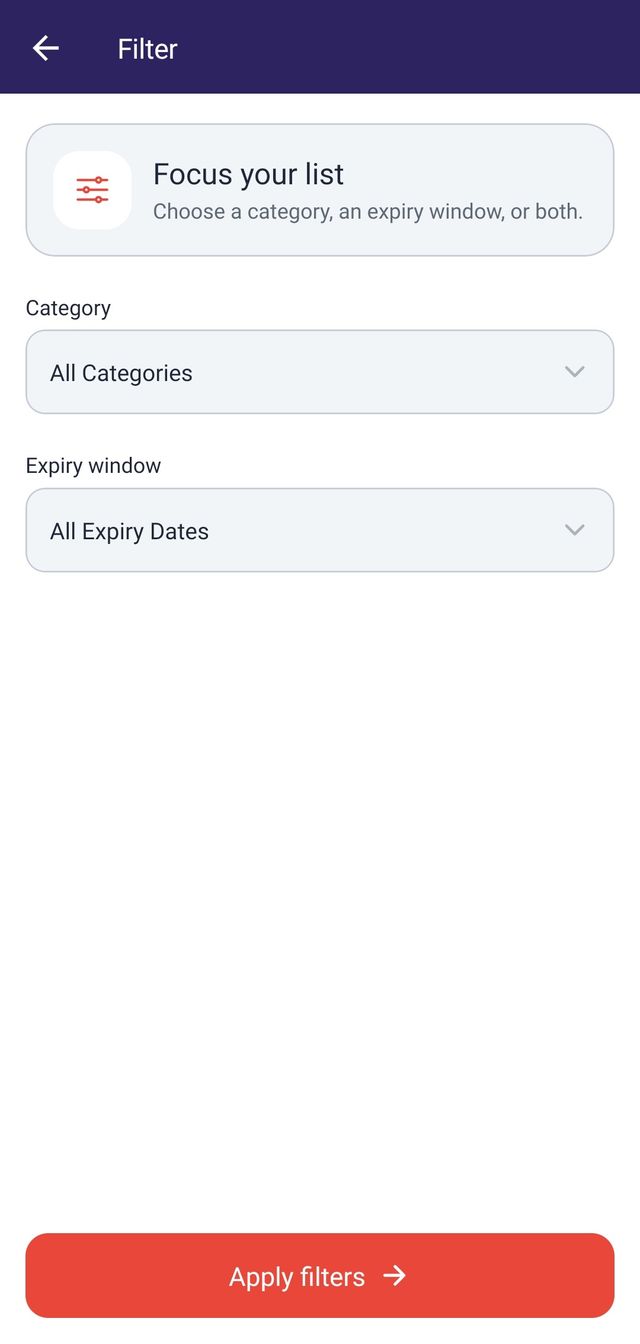
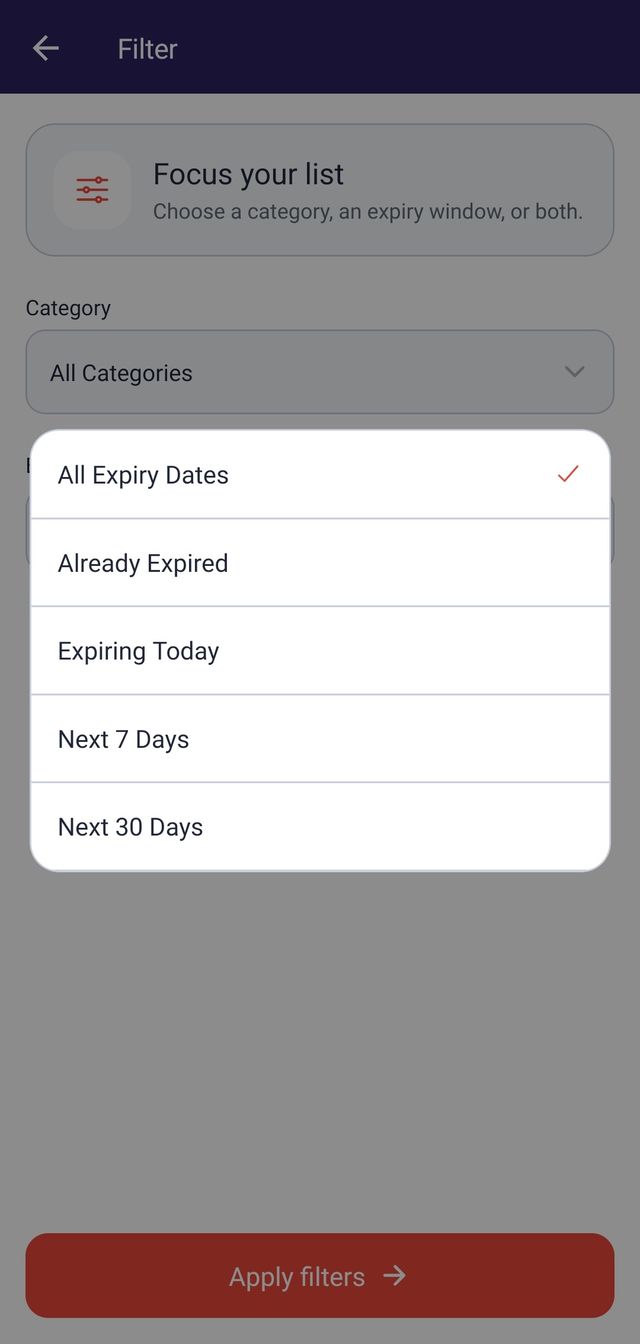
By category, by expiry window, or both. The list itself is always ordered with the soonest expiry first.
The expiry windows are:
- All, everything you have saved
- Expired, anything already past its date
- Today, expiring on the current day
- Next 7 Days
- Next 30 Days
The list loads 20 items at a time and fetches more as you scroll, so a large collection does not slow the first screen down.
How are reminders scheduled?
Your device schedules them locally, at the date and time you chose. Nothing is sent from a server, so a reminder does not depend on the app being open or on your connection at the time.
Because it depends on your device, the app checks whether it could actually schedule the reminder and says so when it could not. Turning notifications off, or disabling the reminder channel on Android, stops reminders arriving, and the app explains what to change and links you to the right settings screen.
Signing in on a device rebuilds your upcoming reminders from your saved items, so signing out and back in does not lose them. To keep one person's reminders from appearing for another, signing out clears the reminders scheduled on that device.
Do you have to create an account?
No. You can start as a guest and use the app straight away, with no email and no password.
A guest account works the same as a registered one. The difference is that it lives only on that installation, so there is no way to sign back in if you lose the device. When you are ready, Settings offers to secure the account: you add an email and a password to the account you already have. Your items, categories, photos, and reminders stay exactly where they are, because it is the same account rather than a new one.
Registered accounts can reset a forgotten password by email. If the email you choose when securing a guest account already belongs to someone else, the app says so and leaves your guest session untouched.
Can you change how the app looks?
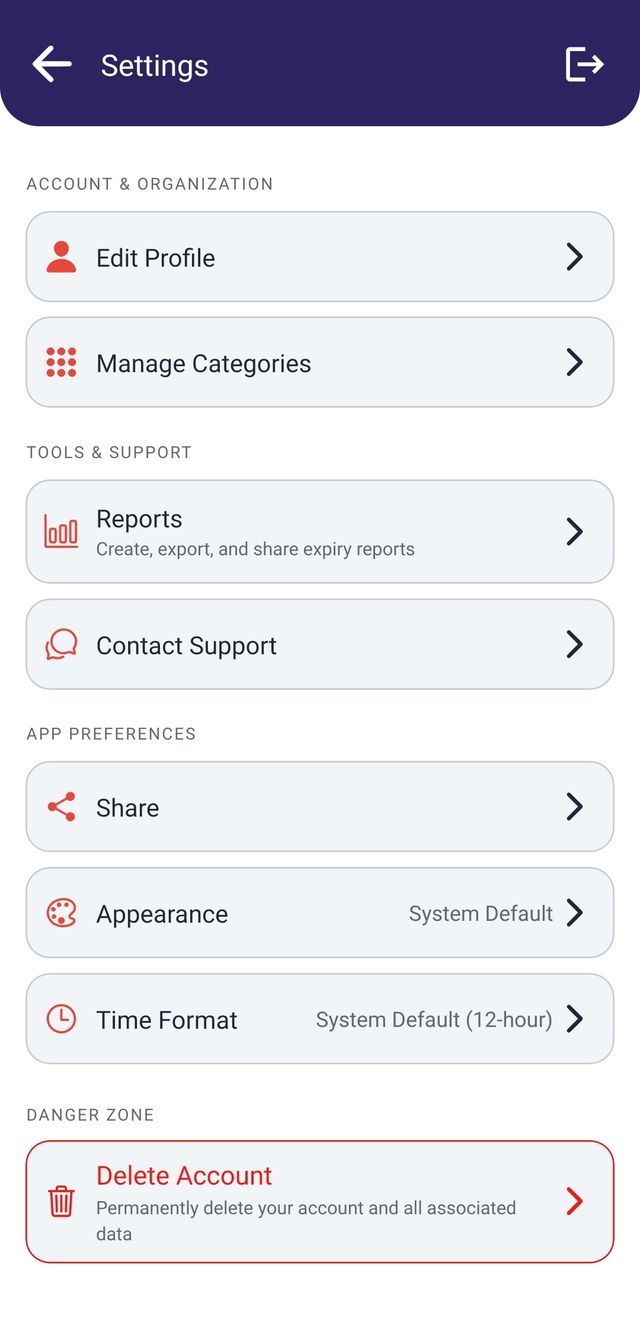
Yes. Appearance can be Light, Dark, or System, and the clock can be System, 12 hour, or 24 hour. Both live in Settings.
System appearance follows your device, so the app turns dark when your phone does. The time format setting is separate from the date format: dates always follow your device's regional settings, while the choice between 12 hour and 24 hour is yours to make in the app. Both preferences stay on the device and survive signing out.
What control do you have over your data?
You can permanently delete your account and the data the app controls, from Settings, whether you are a guest or registered.
Deletion removes your items, your uploaded photos, your categories, your profile, and the account itself, then clears the reminders and report files on the device. Registered accounts confirm with their password first, and every deletion asks a second time before anything is removed. If a step fails partway through, your account stays active so you can try again safely.
See the full account deletion steps, including what deletion does not cover.