
Reports
Turn your items into something you can read
Six reports, built from your own data, previewed in the app and exported as files that stay on your device.
What reports can you create?
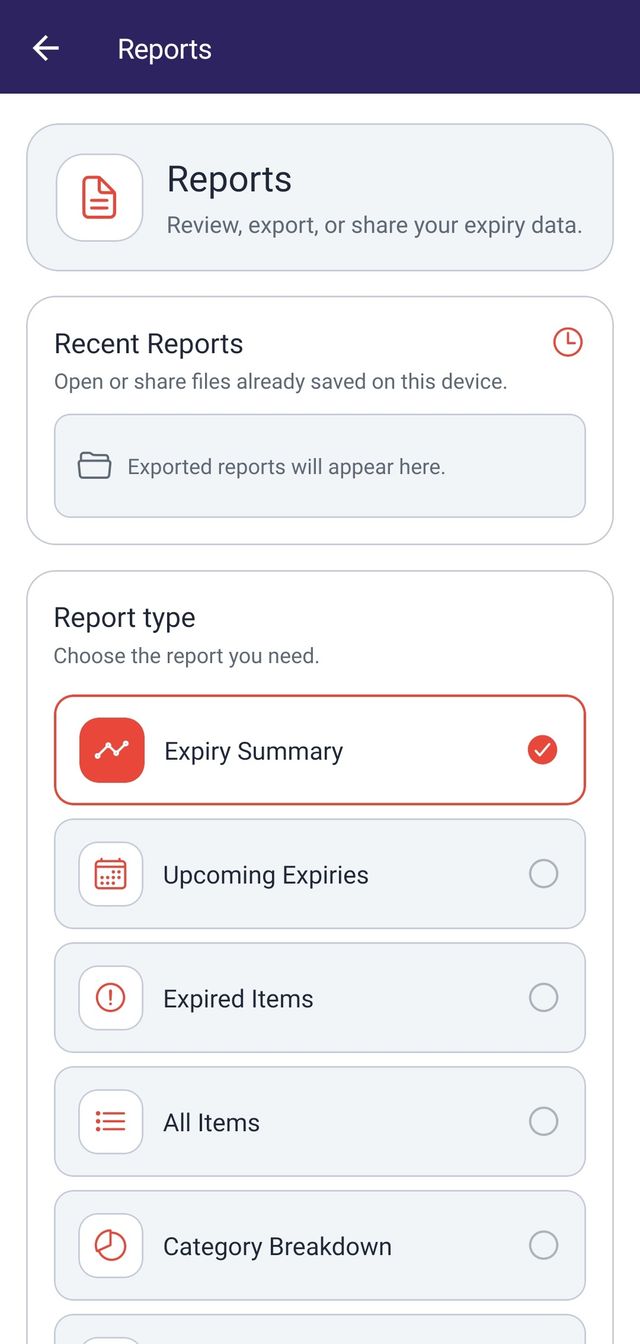
Six, each answering a different question. You pick one, set its filters, and preview it before deciding whether to export.
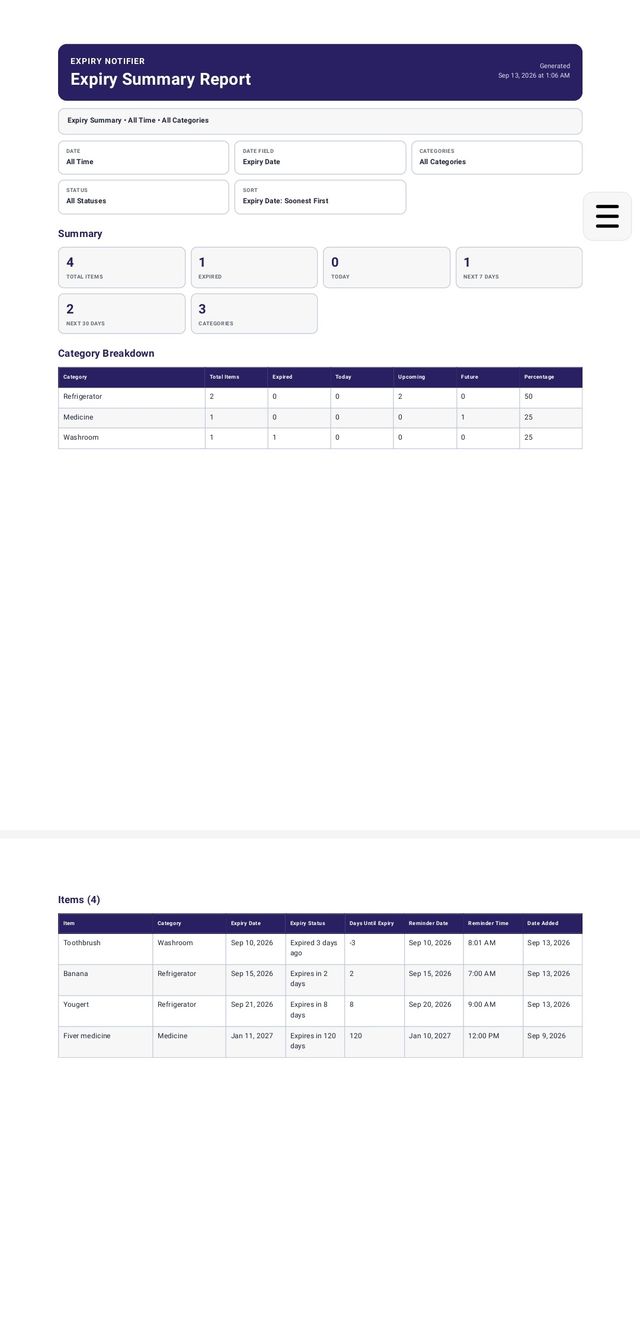
- Expiry Summary
-
How much of what I track is fine, due soon, or already gone?
Counts and totals across the whole filtered set, with a category breakdown.
- Upcoming Expiries
-
What do I need to deal with next?
Items due inside the date range you choose, soonest first by default.
- Expired Items
-
What did I miss?
Everything already past its expiry date, with how long ago.
- All Items
-
What is the complete picture?
Every item that matches your filters, sorted how you ask.
- Category Breakdown
-
Where is everything concentrated?
Item counts and percentages per category.
- Reminder Schedule
-
When are my reminders set to arrive?
Reminders in date order, with totals.
How do you narrow a report down?
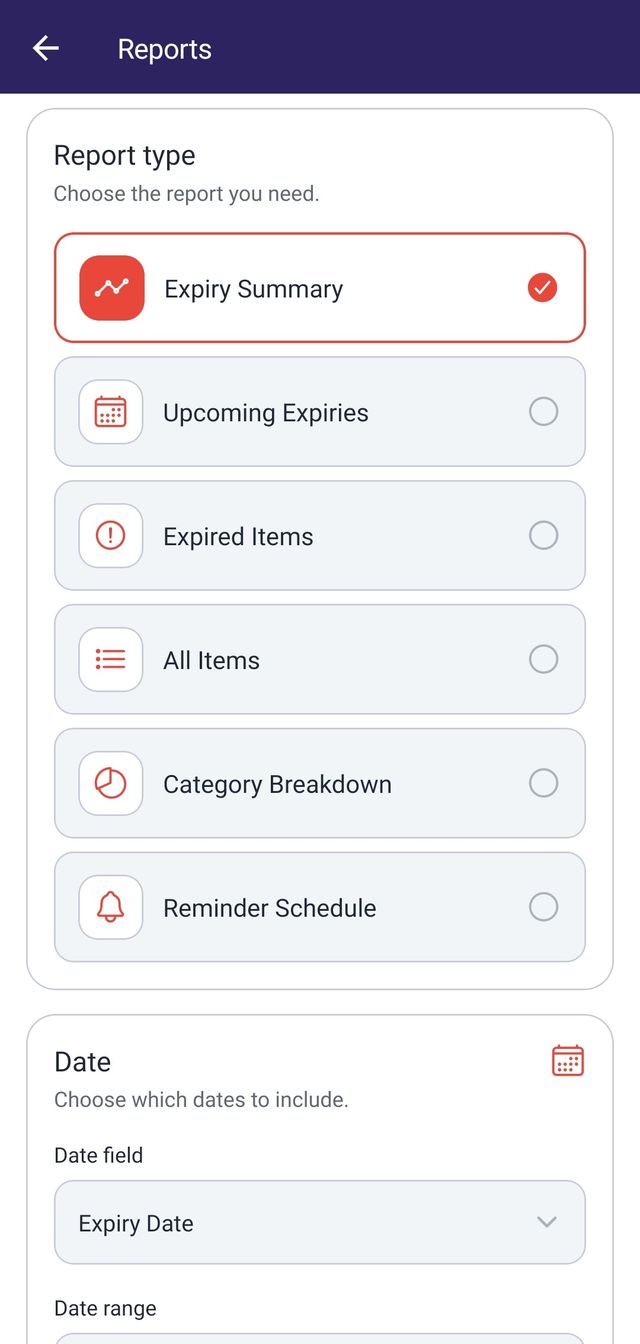
With four controls: which dates to measure, which categories to include, which expiry status to keep, and how to sort the result.
Dates
First choose which date the report measures: the expiry date, the reminder date, or the date the item was added. Then choose a range.
- All Time
- Today
- This Week
- This Month
- Last 7 Days
- Last 30 Days
- Next 7 Days
- Next 30 Days
- Custom Range
Categories
Pick any number of categories from a searchable list. Your choices are staged until you apply them, so backing out changes nothing. Selecting none means every category.
Status
- All Statuses
- Expired
- Today
- Upcoming (1 to 30 days)
- Future (more than 30 days)
Sorting
- Expiry Date: Soonest First
- Expiry Date: Latest First
- Name: A to Z
- Name: Z to A
- Category: A to Z
- Reminder Date: Soonest First
Not every option applies to every report. A Category Breakdown has no item sorting to do, for example, so the app offers each report only the controls that make sense for it.
What does the preview show?
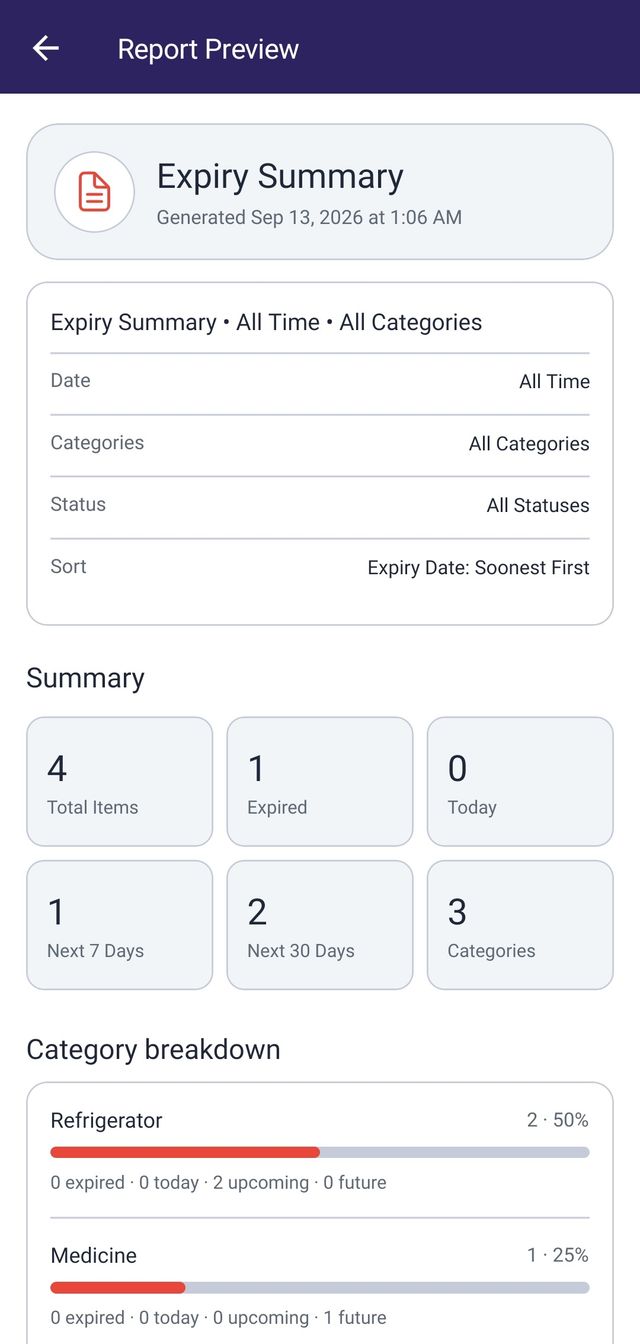
The finished report, before any file exists. You see it in the app first and export only if it is what you wanted.
The preview carries the report's own summary figures, category statistics where the report has them, and the full list of matching items. It follows your theme, your device's date format, and your 12 hour or 24 hour setting, so it reads the same way as the rest of the app.
If anything in your data looks off, such as an item saved by an older version without a usable date, the preview says so in plain language instead of quietly dropping the row.
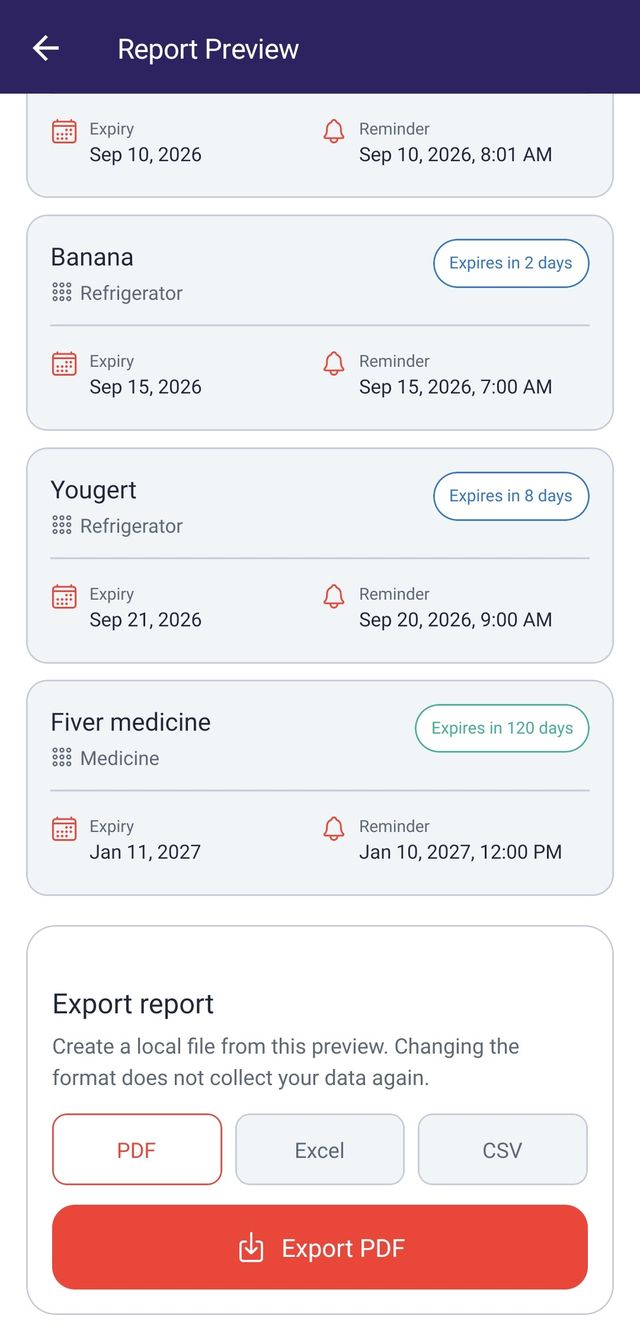
Changing the export format in the preview does not rebuild the report. The data is already in hand, so switching between PDF, Excel, and CSV costs nothing.
What formats can you export?
PDF, Excel, and CSV. Each is built on your device.
- A laid out document with a header, the filters you used, summary figures, an optional category breakdown, and detail rows in a table that repeats its headings across pages. Item photos are left out to keep the file small and printable.
- Excel
- A workbook with a Summary sheet, plus Items and Categories sheets where the report has them. Dates are written in ISO form so spreadsheets sort them correctly, and internal identifiers are left out.
- CSV
- A plain text file shaped for the report you chose. It is written so accented characters survive, quotes and commas inside values do not break columns, and text cannot be interpreted as a spreadsheet formula.
Why is the exported PDF white in dark mode?
Because it is built for printing and for reading outside the app, not for matching your theme.
A PDF leaves the app the moment it is created. It gets opened in whatever viewer you have, emailed, or put on paper, and dark backgrounds serve none of those well. So the report page is laid out white with dark text in both Light and Dark mode, and only the app screen around it follows your theme.
Excel and CSV files have no styling to speak of, so the question does not arise for them.
What happens to a file after you export it?
It is saved on your device, and you can open it or share it using the apps you already have.
Opening hands the file to a viewer installed on your device, such as a PDF reader or a spreadsheet app. On Android the app passes a read only reference rather than the file itself, and falls back to the system chooser when no specific viewer is available. Sharing opens your device's own share sheet, so the file can go to email, messaging, cloud storage, or anywhere else you normally send things.
The app never asks for access to your shared storage. Exported reports live in its own folder, and it checks that a file belongs to it before opening, sharing, or deleting anything.
Does the app keep the reports you generate?
It keeps your most recent ones on the device, up to fifteen. They are not uploaded anywhere.
Recent Reports lists what you generated, with the type, the format, when you made it, and how many items it covered. From there you can open a file, share it, delete it, or clear the list. The list holds only that description, never the contents of the report.
The list belongs to the account that created the entries, so signing in as someone else does not show you their reports. If you deleted a file elsewhere on your device, the app notices it has gone and offers to generate it again from the filters it remembers.
Reports are device-local. They are not backed up, not synced between your devices, and not stored in the cloud. A file you want to keep should be shared or saved somewhere yourself.
Do you need a connection to build a report?
Yes for creating one, no for reopening one you already exported.
Building a report reads your full set of saved items from your account, in batches, so it needs a connection at that moment. It always reads the account you are signed in to, and never reuses whatever happened to be on screen, which is why a report covers everything you have rather than the most recent page of the list.
Once a report has been exported, the file is on your device. Opening and sharing it work offline like any other file.